 ExplainThisDoc
How to scan a document with your iPhone: sharp, complete, searchable
A letter has to go to your insurer, a form back to an agency, or you simply want less paper. Your iPhone scans documents without any extra device. Whether the scan works out depends mostly on light, background and complete pages. This how-to shows how to scan cleanly, check the recognized text and what happens to the document afterwards.
Prepare the page and the light
Most blurry scans go wrong before you even capture them. Lay the page flat on a dark, matte surface so its edges stand out clearly. Smooth out folds and remove paper clips or sticky notes that cover text.
- Light: daylight or a lamp that lights the page evenly from above. Hold your iPhone so that neither your shadow nor the phone's falls on the page.
- Glare: glossy paper and plastic sleeves reflect light. Take the page out of the sleeve and change the angle until no bright spot sits on amounts or dates.
- Completeness: put multi-page letters in order first and remember backs of pages and enclosures. A scan only shows what you capture.
Scan with ExplainThisDoc
- Open your archive and tap “Scan”.
- Hold your iPhone straight above the page. The camera finds the page edges and shows the detected frame.
- For several pages, capture all pages of the same document one after another.
- Finish the scan. You are back in your archive while processing continues in the background.
To add a photo or PDF you already have, tap “+” and choose “Import photo” or “Import file”. For a letter that just arrived, scanning in the app is usually the shorter way because the document lands straight in your archive.
Check the recognized text
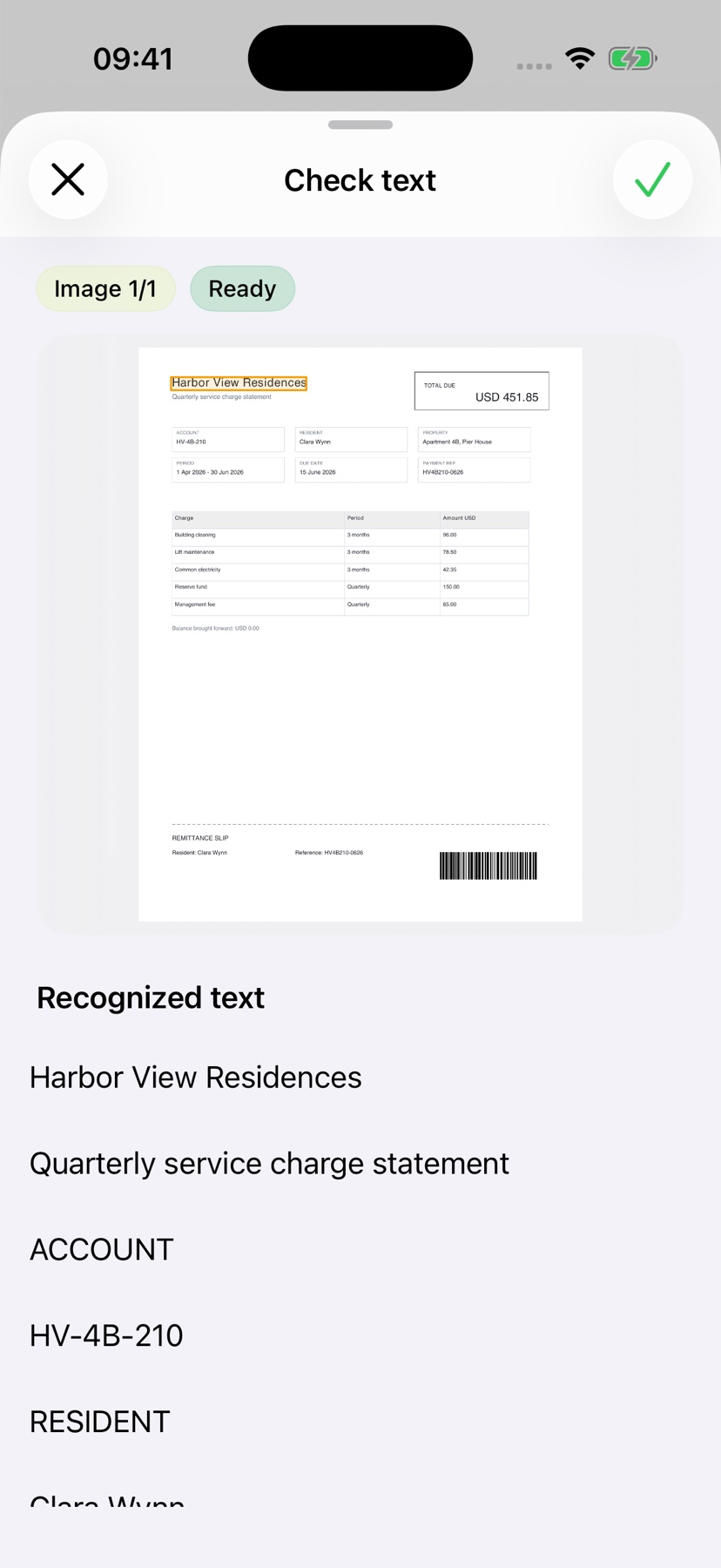
After the scan, text recognition reads the words directly on your iPhone. That is what makes the scan searchable and lets the app explain it. In photos and scans, single characters can be misread, for example an 8 as a B or a comma as a period.
If you want to see the recognized text before an explanation, turn on “Show text before explain” under “Settings” → “Text review”. For photos and scans, the app may highlight uncertain recognition and show the matching part of the image. Compare names, amounts and dates with the original. If a page is blurry or cut off, scan it again: an analysis cannot fill in what is missing.
Understand what it says
The free Light analysis gives you a first overview; it runs with Apple Intelligence on supported devices and in supported languages. Pro explains in more detail, sorts out amounts, deadlines and next steps, and costs one credit per analysis. If you only want to collect, the scan is enough; start the explanation later when you need it.
Original, explanation and your notes stay together in your archive. The guide Scan and forget shows how that works without folders. Keep important originals such as certificates or notarized documents on paper anyway: Which documents to keep – and for how long?
Scan your first letter
Snap or import
Scan a document or bring in a photo or PDF. No sign-up, no folders.
Understand it in plain words
Light analysis, free on your device¹. In depth with Pro: 1 credit per analysis.
Find it when you need it
The original, the explanation and your notes stay together in your archive.
- No sign-up
- No subscription
- Start right away

 Scan with your iPhone camera
¹ With Apple Intelligence enabled on a supported device and in a supported language.