 ExplainThisDoc
Digitise old documents and deeds: a step-by-step guide
In the cellar there are boxes of deeds, purchase contracts, tradesperson invoices and family papers that nobody wants to go through any more. Digitising old documents works if you do not tackle them all at once: sort by document type first, scan anything legally relevant first, split long files into blocks and link related items. This guide shows the way and says honestly where the app reaches its limits. The whole system behind it is in the guide “Digitise paper documents at home”.
Taking stock: sort first, then scan
Anyone who wants to digitise old documents rarely fails at scanning, but at the pile: boxes, lever-arch files, loose folders of deeds and house papers. Get an overview before you pick up the camera. Sort the collection into piles by document type, for example deeds, contracts, invoices, tax, insurance, health, house and family papers. The piles match the document types ExplainThisDoc itself distinguishes: the app knows 20 types in four groups.
The table shows what the app recognises for each type and what only you can add. The assignment happens automatically as soon as a document is analysed; the names in the table are approximate. Without an analysis, for example if you have set “Document analysis” in Settings to “Archive only”, a scan gets its date and time as title and a file keeps its file name. Automatic does not mean error-free: glance through the assignment in the archive, especially for items that could fit several types.
| Document type | What the app recognises | What you add |
|---|---|---|
| IDs, birth, marriage and proof-of-address certificates | Document type for identity, civil status and residence | Year of issue and authority in the title; in the note, where the original is kept |
| Deeds, wills, powers of attorney, probate papers | Document type for legal matters: proceedings, estate, representation, notarial file | Date and parties in the title; link related items to each other |
| Purchase, tenancy and building contracts | Document type contract | Which property, which period; link amendments and correspondence |
| Property management, service charges, running a house or flat | Document type housing | The property (flat, house) in the title, so several properties stay distinguishable |
| Tradesperson and material invoices, payment receipts | Document type invoice | Trade and year in the title; link to the contract or sign-off |
| Tax notices and tax papers | Document type tax | Tax year in the title |
| Policies, claim files | Document type insurance | Policy number and term in the note; link claim correspondence |
| Bank statements, savings contracts, pension statements | Document type finance | Bank or provider and period in the title |
| Official notices, permits, registrations | Document type authority: decisions, permits, registrations | Reference number and authority in the title or note |
| Employment references, payslips, employment contracts | Document type work | Employer and period in the title |
| School and training certificates, qualifications | Document type education | Institution and year of completion in the title |
| Medical letters, vaccination record, reports | Document type medical | Practice or hospital and year in the title; questions in the note |
| Vehicle papers, manuals, service records (heating, appliances) | Document types mobility and technology | Appliance or vehicle and year of purchase in the title; link invoice and manual |
| Travel documents, tickets, invitations | Document types travel and event | Mostly relevant for memories: occasion and year in the title |
| Chronicles, newspaper cuttings, family papers as historical records, brochures | Document types historical, publication, advertising | Who or what, year and place in the title; in the note, where the item came from |
| Everything that fits nowhere | Document type general | A descriptive title from you; keywords in the note |
The column “What you add” is the part that no text recognition delivers: where is the original, which house does the receipt belong to, which items go together? You do that with title, note and link (see “Long files, names and the right year”).
The whole system behind this guide is in Digitise paper documents at home.
Order: anything legally relevant first
You do not have to get through the collection in a weekend. Begin with the papers whose loss would hurt most or that you are most likely to need, and work your way towards the minor ones:
- Certificates and IDs: civil status certificates, proof of address, notarial deeds, wills, powers of attorney.
- Property and home: purchase and building contracts, insurance policies, tradesperson invoices. Rules on keeping invoices for work on your own property differ by country, so check those for yours.
- Pension and employment records: employment contracts, payslips, social insurance records, pension notices, employment references.
- Health: medical letters, surgery reports, vaccination record.
- Tax, tenancy papers, bank statements: the periods are in Which documents to keep, and for how long.
- Last: manuals, travel documents, family papers as keepsakes.
Which of these originals you keep after scanning, and for how long, is covered in Keep or shred paper after scanning.
Work in small portions: one box, one file or one document type per session. Keep a short list of what is already scanned so that you do not start twice. The archive also shows duplicate groups in case an item slips through twice.
Capturing fragile and yellowed papers
Old paper is brittle, creased or foxed, and ink or print has faded. Go carefully: do not unfold anything that breaks when you open it, and do not remove staples if the paper tears. Lay the sheet flat on a calm, bright surface and capture it from above. How to avoid shadows, reflections and tilted shots is described in How to scan a document with your iPhone.
The camera in the app detects the page edges, and a scan may have up to 24 pages. For very fragile pieces that you would rather not handle several times, a photo makes sense. It goes into the app via “Import photo”. If you already have PDFs or images, you bring them in via “Import file”.
Text recognition runs on your device, with language correction and automatic language detection. On pale, stained paper it may capture less text than on a fresh printout. With “Show text before explain” under “Settings” → “Text review” you see the recognised text and notice whether the capture is good enough.
Long files, names and the right year
A building file or a purchase contract with appendices quickly runs to more than 24 pages. A single scan holds at most 24 pages, and the Pro analysis also processes at most 24 pages or 24,000 characters. So split long files into blocks, for example by chapter: contract, appendices, correspondence, sign-off. Give each block a title that reveals the order, for instance “House file, Linden Road, part 1: contract”.
You link related items in the archive. The links appear as a list and as a graph and can be removed again. That keeps a file together even if it consists of several scans. You can also add a note to a document, with attachments from the camera, a scan or a file, for example a photo of where the original is stored.
You can rename the title of an entry. That is especially worthwhile for old items, because the automatic analysis only knows what is in the text, and a date or house that only you know is missing from the title. Archive search goes through titles, summaries, document types, deadline texts and notes, not the whole text of all originals; so what is written in them you find through your titles and notes. You search the full text of one document in the reader. More on this in Find your documents quickly on iPhone.
For collections sorted by time there is the period filter. It works either by import date or by the recognised year. The import date says nothing about the paper in a box you scan today; the recognised year does, provided the analysis finds one in the document. If the paper shows no year, put it in the title or the note; then you find the item through search.
The originals stay
A scan does not replace the paper. You keep certificates, notarised documents and other important papers; ExplainThisDoc is a private archive for finding and understanding, not a legally binding filing system. How to decide which paper to keep, and what to check before throwing anything away, is in Keep or shred paper after scanning.
Digitising still helps, because it protects the original: you no longer take the certificate out of the drawer when you only want to look up a date or show a photo to an office. For every original you keep, note in the note where it is. You also back up the archive: “Archive export” in the “⋯” menu saves the whole collection as a ZIP file, and optionally iCloud sync keeps your archive up to date between your devices.
Old scripts and handwriting: an honest limit
Many old papers are not printed: letters in old handwriting, handwritten deeds of sale, marginal notes, stamps, tables drawn by hand. For such originals ExplainThisDoc promises no text recognition. Handwriting and old scripts, for example German Kurrent or Sütterlin, are neither tested nor promised.
The document is not lost, though. You file it as a photo or scan in the archive, it stays readable as an image and gets a title. Give it a title that describes what it is, and add keywords, names and places that you have deciphered in the note. Through those titles and notes you find it again later, because archive search includes the note text. Copying the key passages into the note is manual work, but it makes an old document searchable.
How ExplainThisDoc helps with old collections
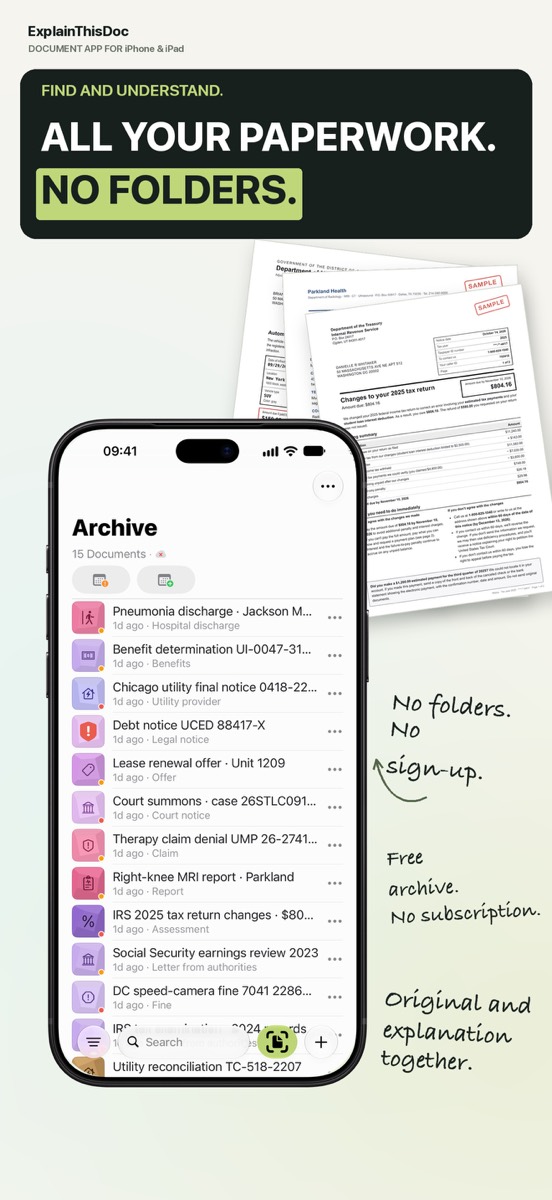
ExplainThisDoc is made for filing paper without folders: you scan or import, the app recognises the text on your device, suggests a title, document type and summary, and in the archive each item shows an icon for its type and a colour for its area. The archive is free. The free Light analysis runs with Apple Intelligence on supported devices and in supported languages; otherwise Pro explains in more detail, 1 credit per analysis. You can also just collect first and analyse later.
Start with one document type, add titles and notes, link related items, and keep the originals of important papers. Limits remain: for handwriting and old scripts the app promises no text recognition, and the explanation replaces neither legal advice nor the original that you keep.
Start with the first box
Snap or import
Scan a document or bring in a photo or PDF. No sign-up, no folders.
Understand it in plain words
Light analysis, free on your device¹. In depth with Pro: 1 credit per analysis.
Find it when you need it
The original, the explanation and your notes stay together in your archive.
- No sign-up
- No subscription
- Start right away

 Scan with your iPhone camera
¹ With Apple Intelligence enabled on a supported device and in a supported language.