Find your documents quickly on iPhone
You need the contract, its invoice or the details of your last conversation. In ExplainThisDoc, search, filters and document links bring you back to the right paperwork. The original, its explanation and your own notes stay together, ready for the next question.
Start with what you remember
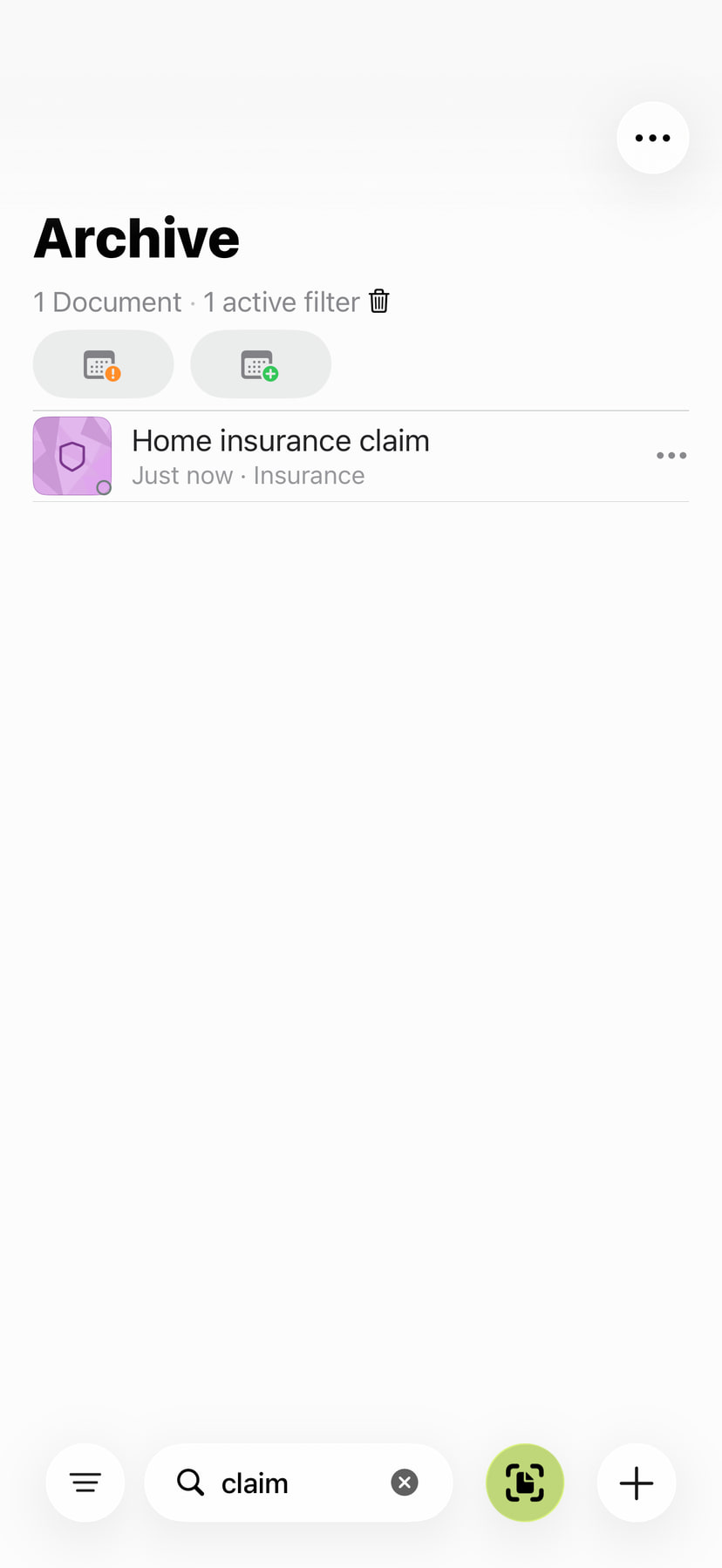
Archive search looks at titles, topics and your own notes. A supplier's name in the title or a phrase you used in a note can lead you back to the right entry.
- Open archive search and enter your term.
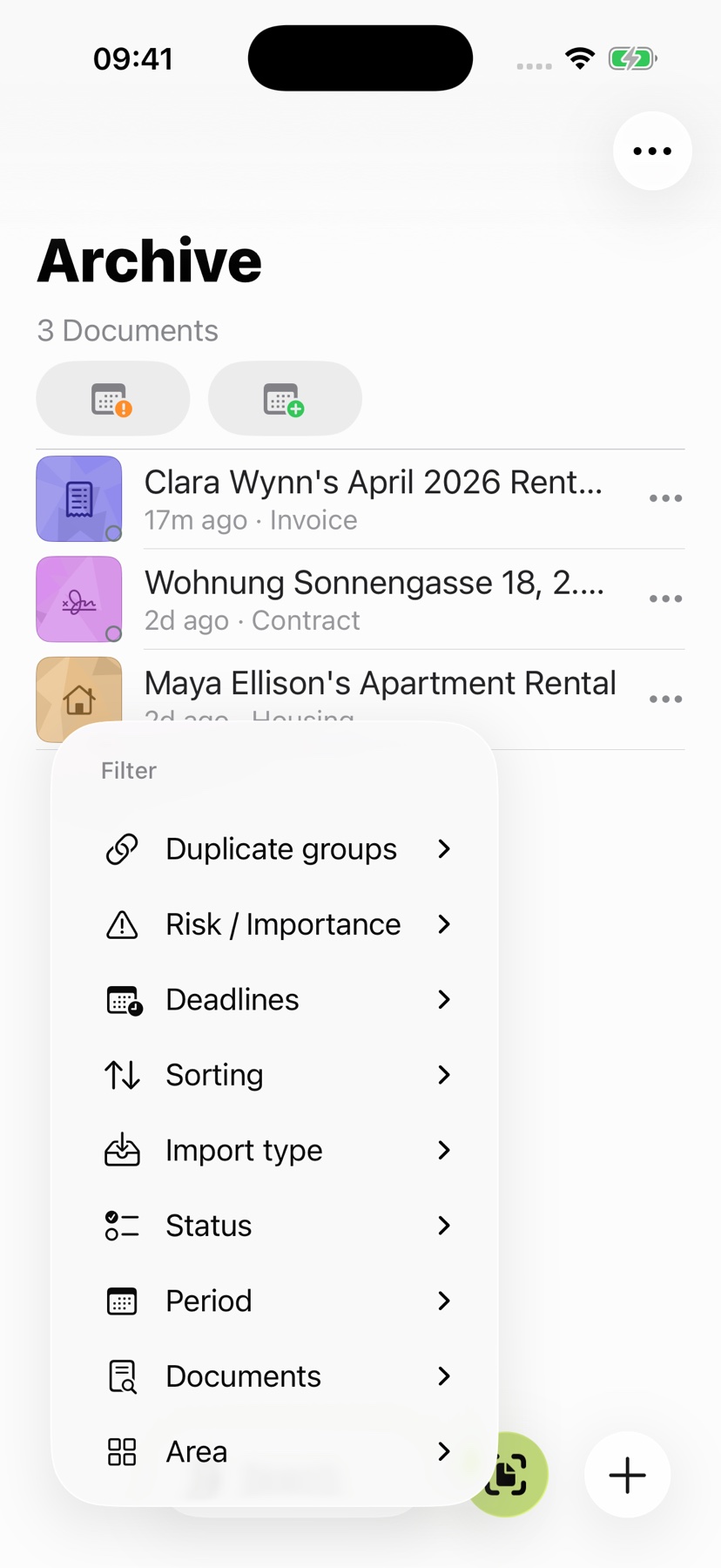
- Narrow the results by topic, document type or time period if useful.
- Open the entry to read your note, the explanation or the original.
To find a particular word inside an open scan, use reader text search. Archive search finds the document; reader search takes you to the passage.
If a document is missing from the results, check active filters. Archive search is not a full-text search across every original page; use Reader search inside an open document.
Bring the related paperwork with it
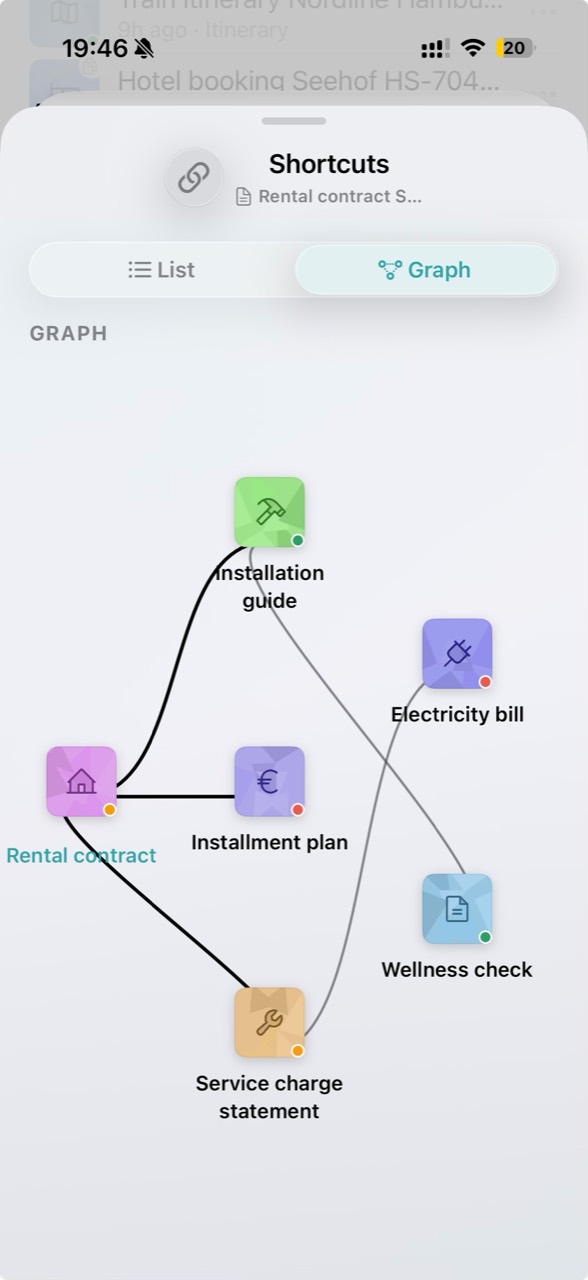
Link documents that belong to the same matter. From a rental agreement, open its connected bills; from a booking, reach your other travel documents. View the connections as a list or a graph.
This saves another search when answering a question requires several files. The guide to private document management covers the route from your first import to a connected archive.
Know where you left off
Keep the outcome of a phone call or your next step in a note attached to the document. The date, person you spoke to and outstanding question often give you all the context you need later. Your notes also add useful search terms.
Filter the archive for documents with notes or open tasks. Deadline filters and the archive calendar bring recognized dates into view. Duplicate documents can be grouped. Choose the view that fits what you want to handle today.
Pick up on your next device
With iCloud Sync, find your archive on your other devices using the same iCloud account. Documents, saved explanations and notes stay together; new scans, changes and deletions sync automatically. Save yourself sending files and importing them again.
Enable Settings → iCloud Sync → On and confirm the library assignment. Set up sync on your other devices with the same iCloud account. The getting-started guide walks through setup; the privacy guide explains private storage.