Add deadlines from documents to your iPhone calendar
The date is in the document. You need it in your day. ExplainThisDoc prepares suitable recognized dates for your calendar. Open the entry from the explanation, add a reminder and save. The document stays available in your archive whenever you need the details.
Know what is happening and when
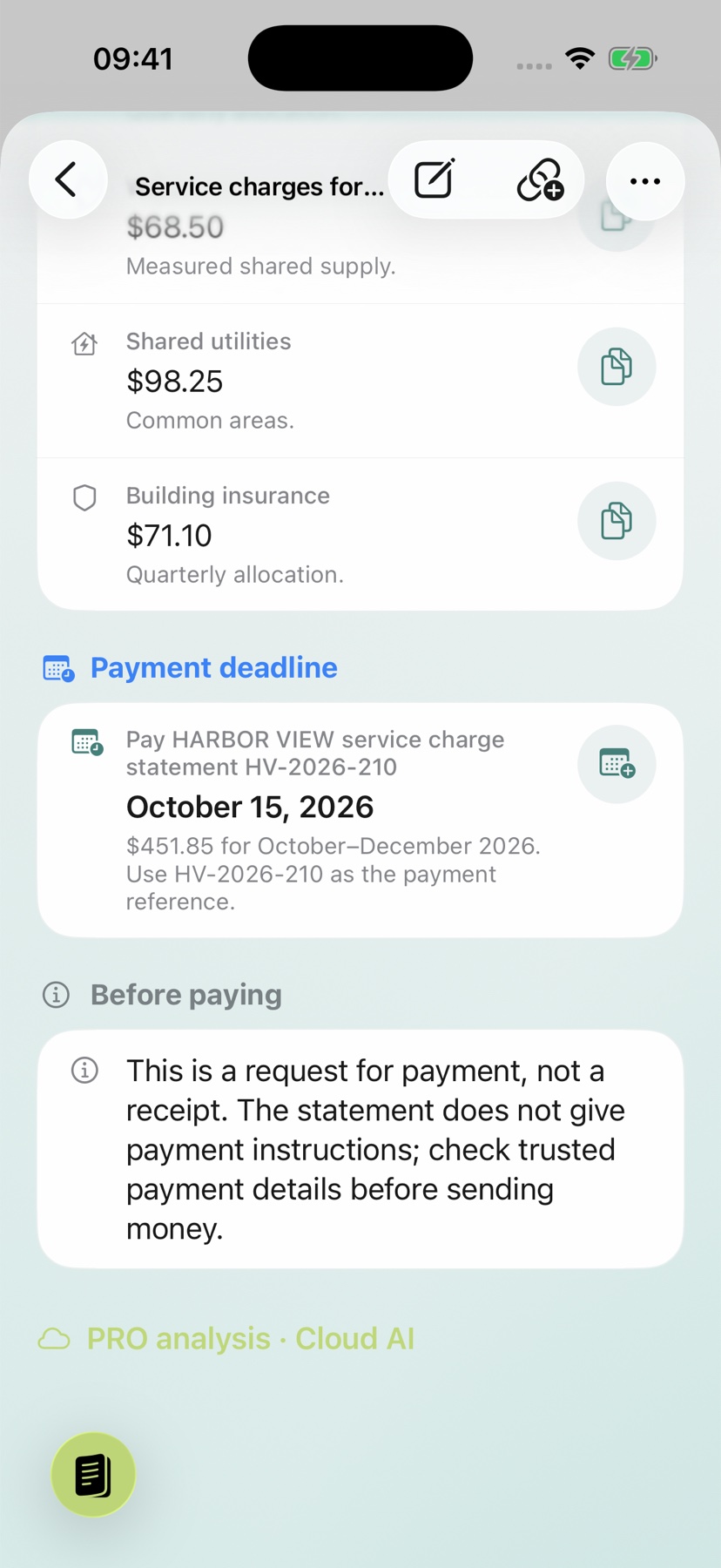
The Harbor View example shows a payment deadline of October 15, 2026. Compare the date and its purpose with the original before opening the calendar action.
An issue date, billing period and payment deadline mean different things. Choose the date for the task you actually need to complete.
Save the prepared calendar entry
- Open the calendar action beside a concrete recognized date.
- Check the title, date, time and available location in the dialog.
- Choose the destination calendar and a reminder.
- Save, then verify the event in your calendar.
The image shows the action in the explanation. An icon or an open dialog does not prove that an event was saved.
Give yourself time to act
Choose a reminder early enough to prepare. For a relative deadline such as “14 days after receipt”, first establish the actual reference date. Without it, no reliable calendar day can be derived.
If no suitable calendar action is available, clarify the date and enter the verified event in your calendar yourself.
Keep deadlines connected to their documents
The archive calendar gathers recognized document deadlines. Filters bring you to paperwork with a deadline or dates coming up soon. Open the explanation and original again from there.
Check off a related task or note what you have completed. At the next follow-up, you can see where you left off. Explore the other routes from content to action in the guide to calendar events, directions and tasks.