Search for text in scanned documents on iPhone
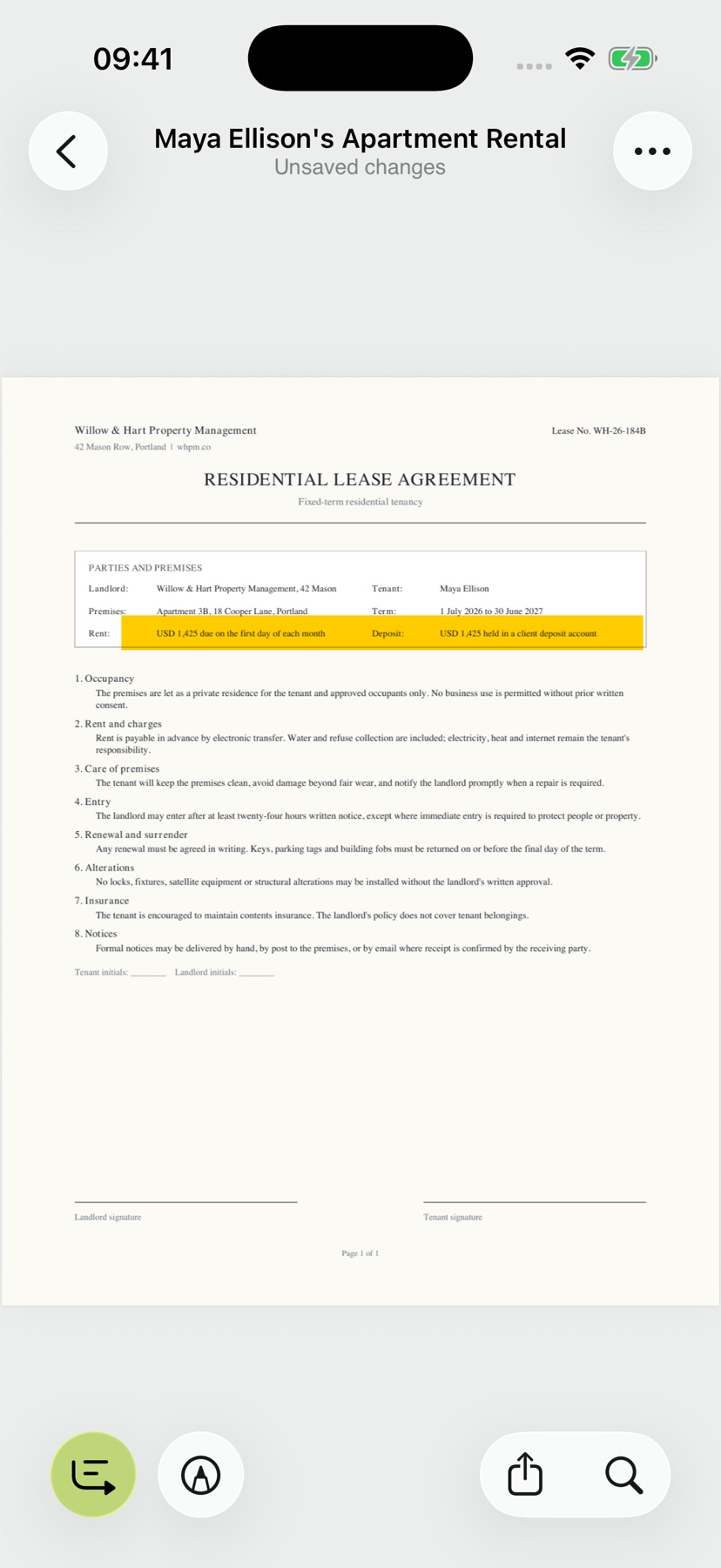
You know the word you need and want to find it without reading the whole contract again. ExplainThisDoc makes text in document photos and scans searchable. Search in the reader and go straight to the matching passage, with the original page still in view.
Turn the page image into searchable text
A scan begins as a picture of a page. ExplainThisDoc recognizes the words on your iPhone so you can use them in search. For a PDF that already contains text, the app uses that existing text.
The original stays visible in the reader. You find the wording in its place on the page and read the surrounding paragraph when you need context. This saves copying the text into a separate app just to search it.
Reach the passage in three steps
- Open the relevant scan or PDF from your archive in the reader.
- Tap search and enter a name, phrase or amount.
- Choose a match to reach that part of the document.
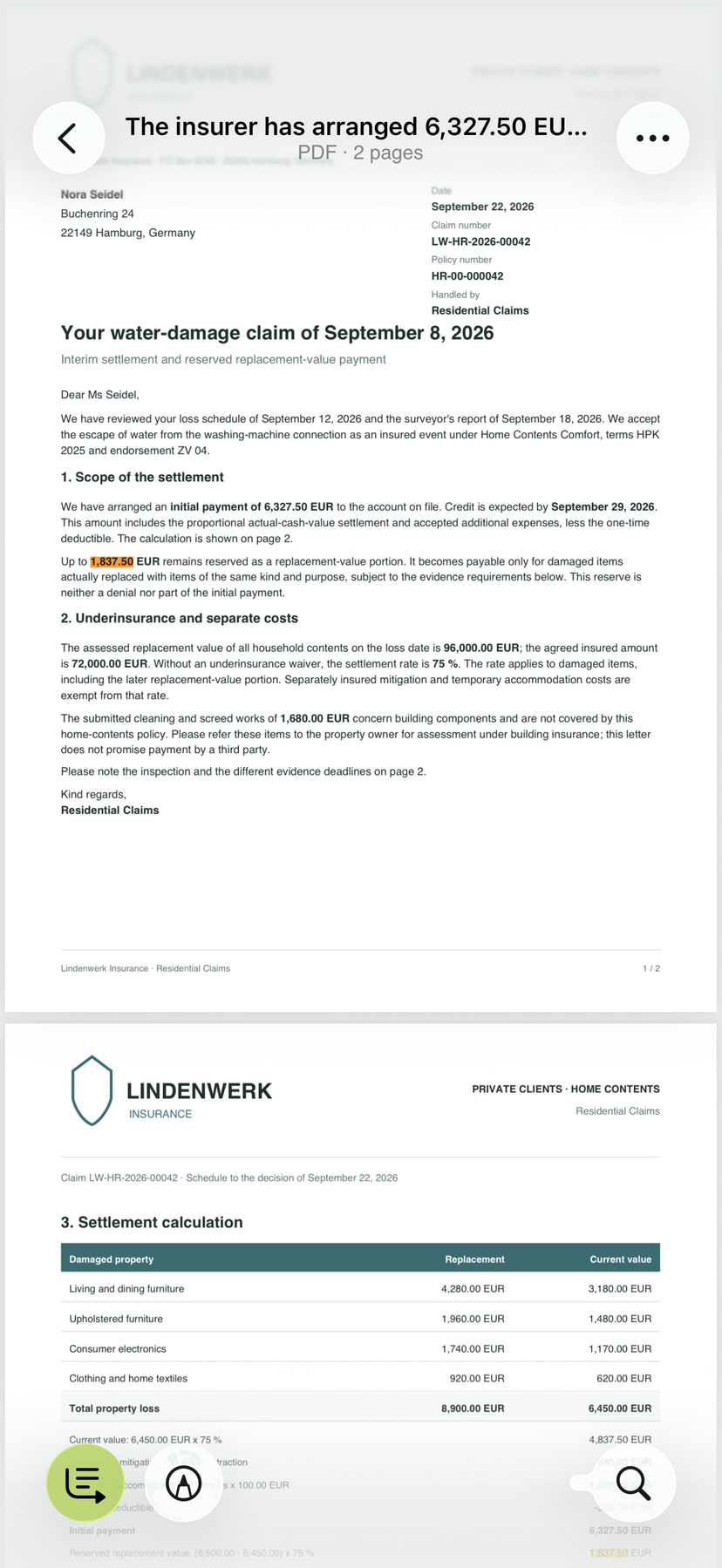
Search for an amount or a keyword to jump straight to the right passage and read it in context.
No match? Try a shorter word or an amount without its currency symbol. Blurred scans can produce recognition errors. Check the original visually; no search result does not prove the wording is absent.
Find the document, then the exact wording
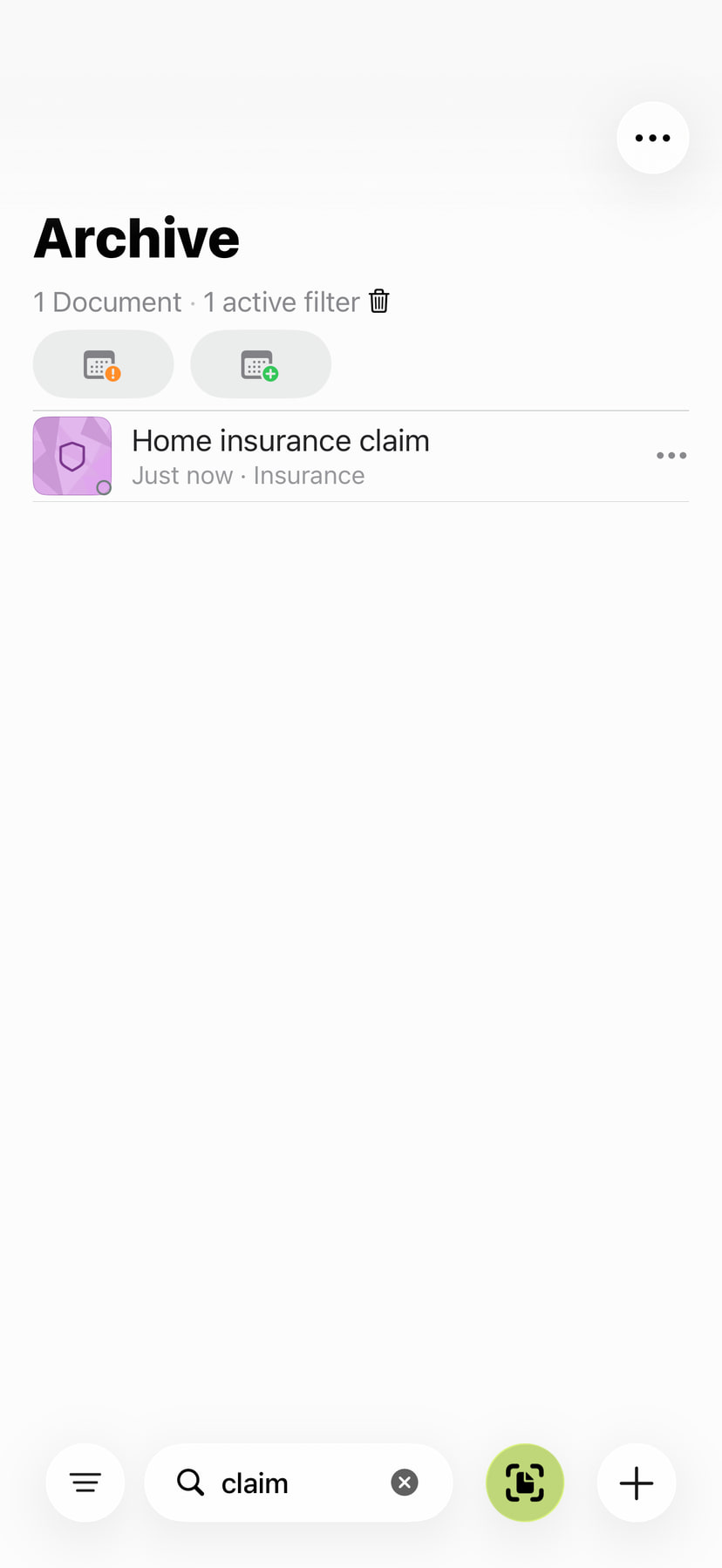
Use archive search when you are looking for the file itself. It finds terms in document titles, topics and your own notes. Filters for document type and time period narrow the results. Once the document is open, reader search finds text within it.
The two searches work together: first find the contract you remember, then look inside it for the deposit. The guide to finding documents explains the archive filters.
Work with the passage you found
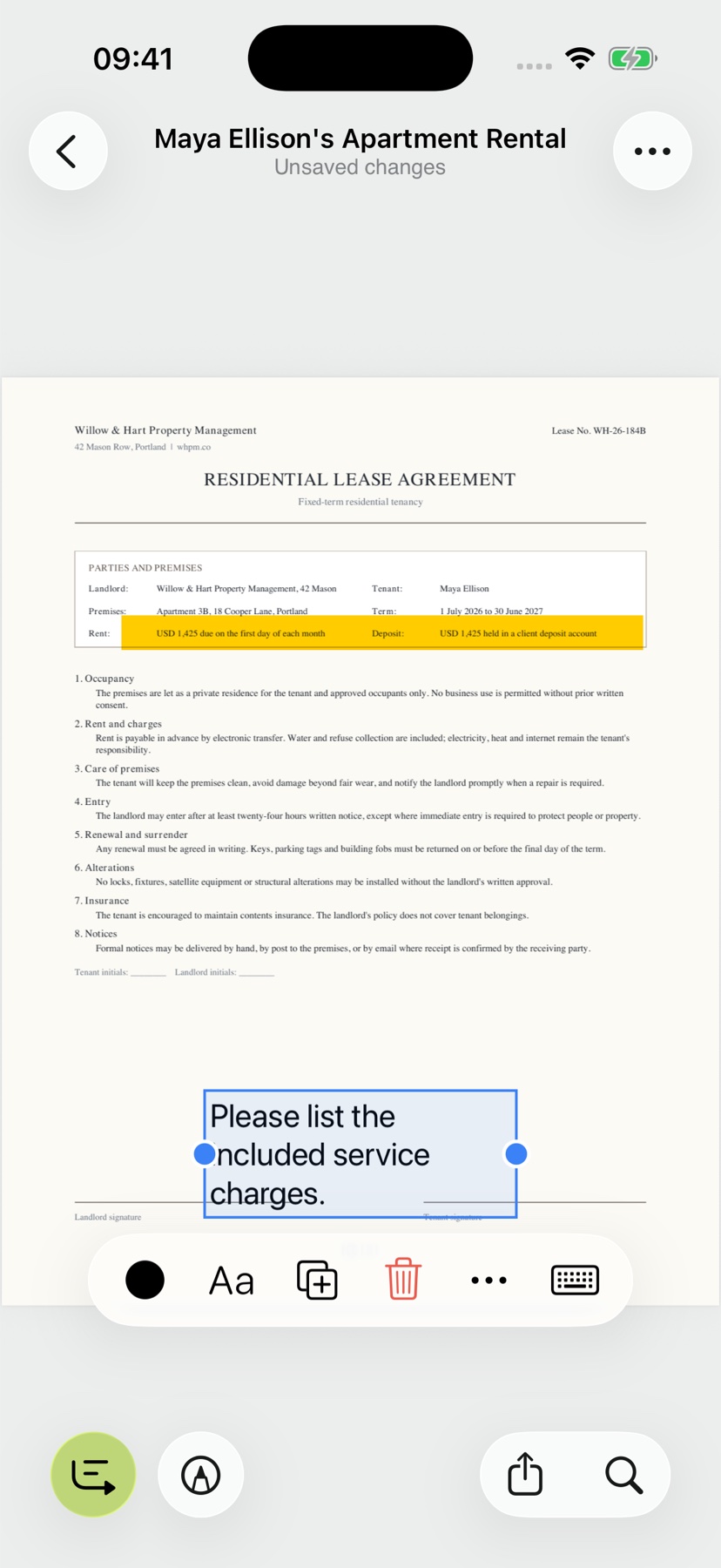
Highlight the passage to make it easy to spot next time. Add a comment to keep your question or observation alongside it. The reader tools stay close to the document.
If you want to understand the overall content, use a summary or Pro explanation. Move from a particular search result to a useful overview without leaving your archive.