Sign, comment on and highlight PDFs on your iPhone
A signature is missing, a passage matters or you want a question beside the relevant paragraph. Handle it on your iPhone in the ExplainThisDoc reader. Your PDFs and scans remain part of your archive, together with their explanations and related documents.
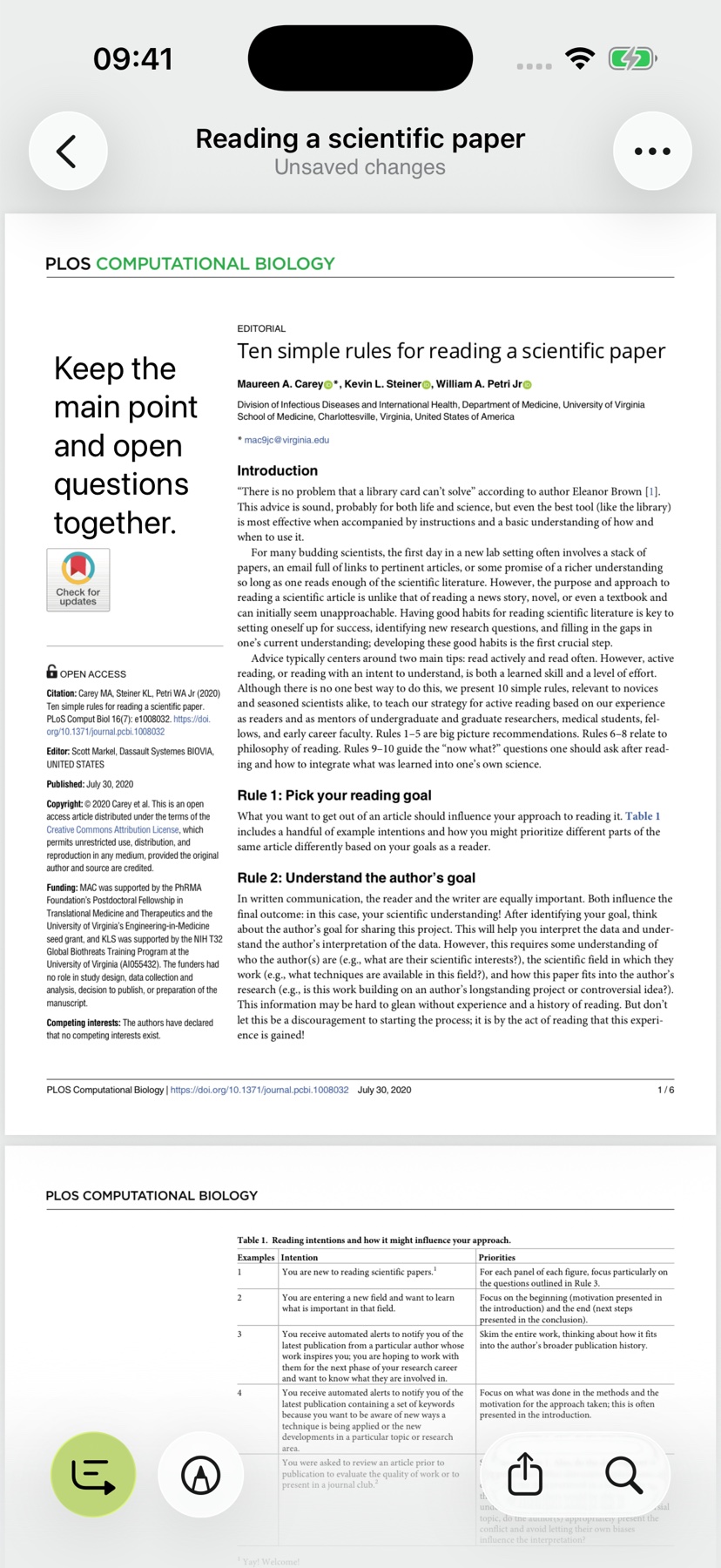
Open the document and find the right passage
Open a PDF or scan from your archive in the reader. Text search takes you to the relevant passage. This is particularly useful in longer documents when you need to find an amount, a condition or a name.
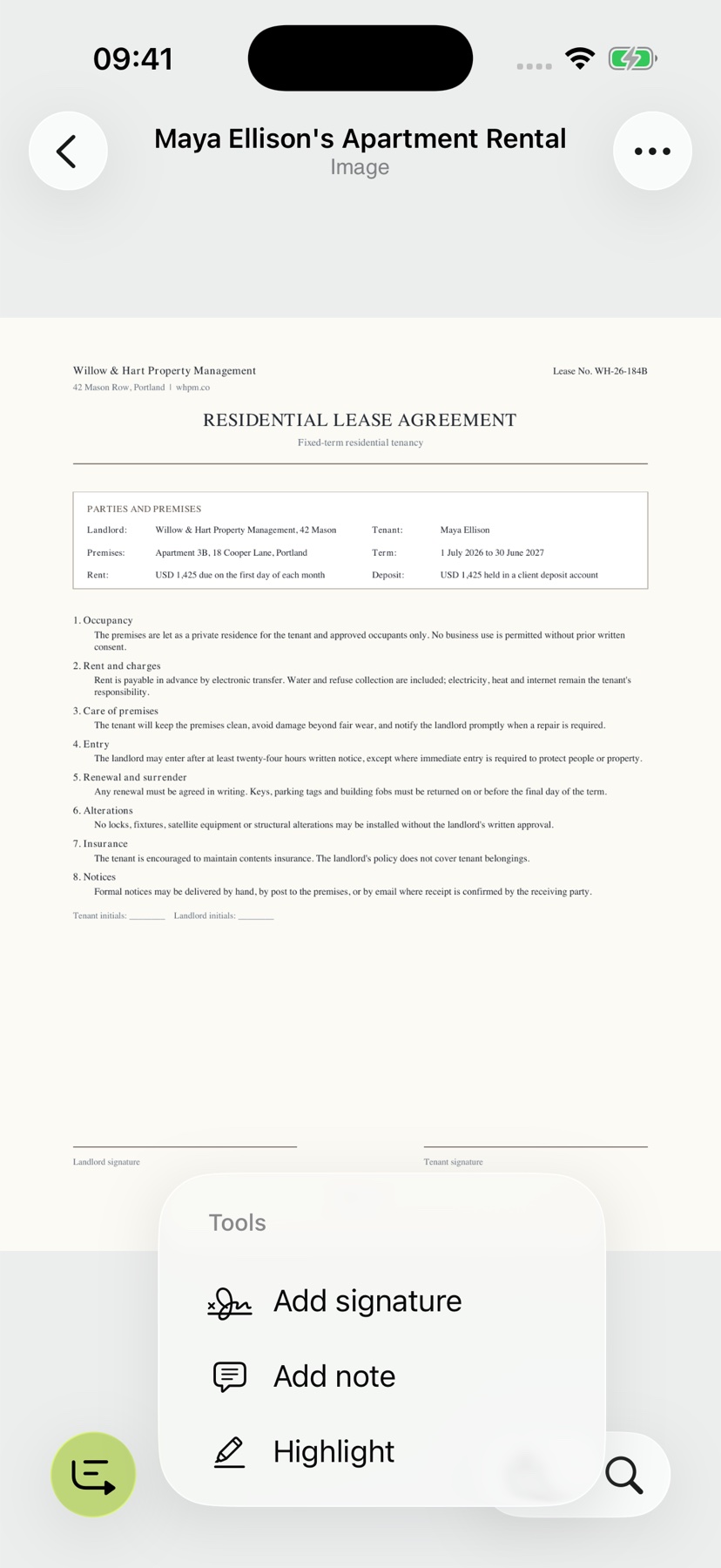
The tools menu provides highlighting, comments and signatures. Your annotations stay with the document, so the next time you open it you can pick up where you left off.
Highlight what matters and keep questions on the page
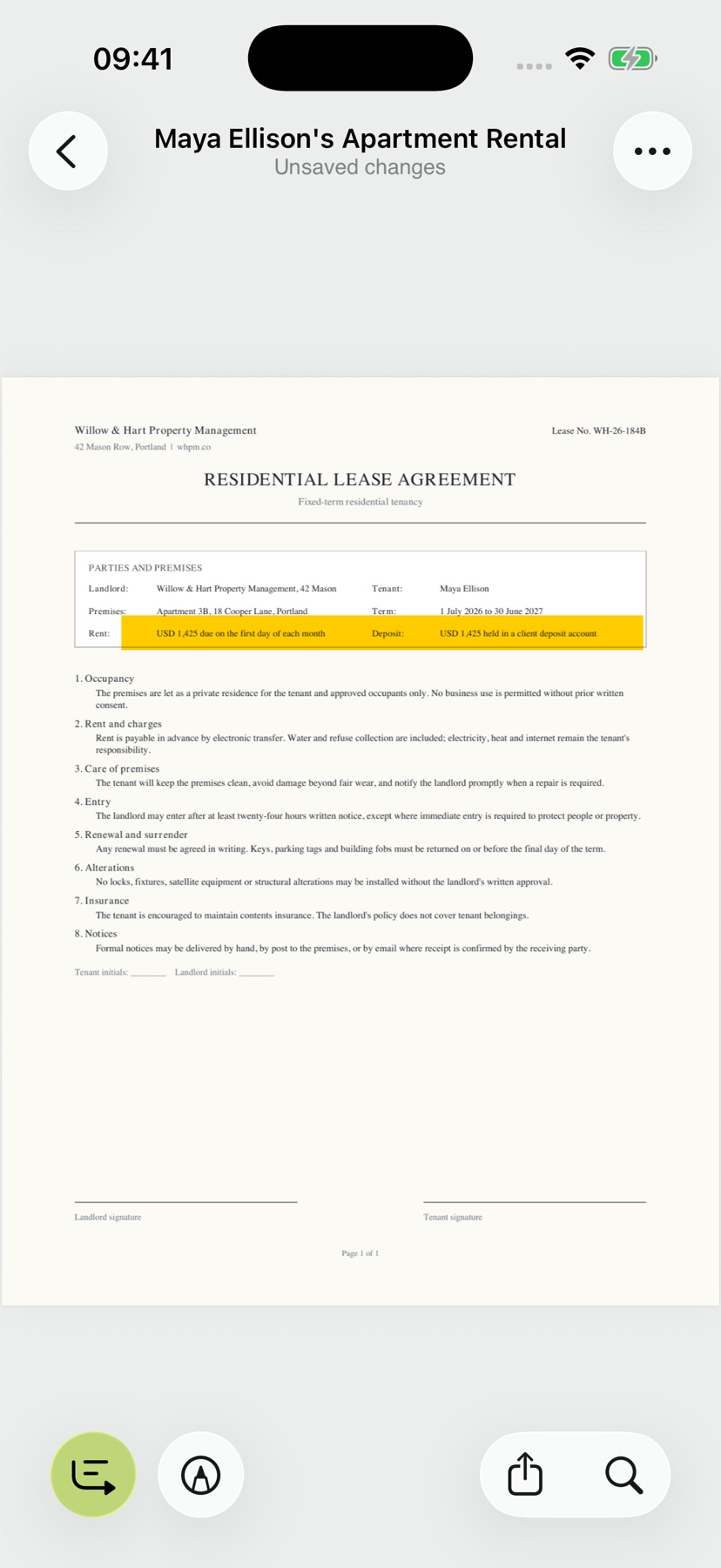
Use the highlighting tool to mark the relevant part of a page. When you come back to the document, the passage you need stands out.
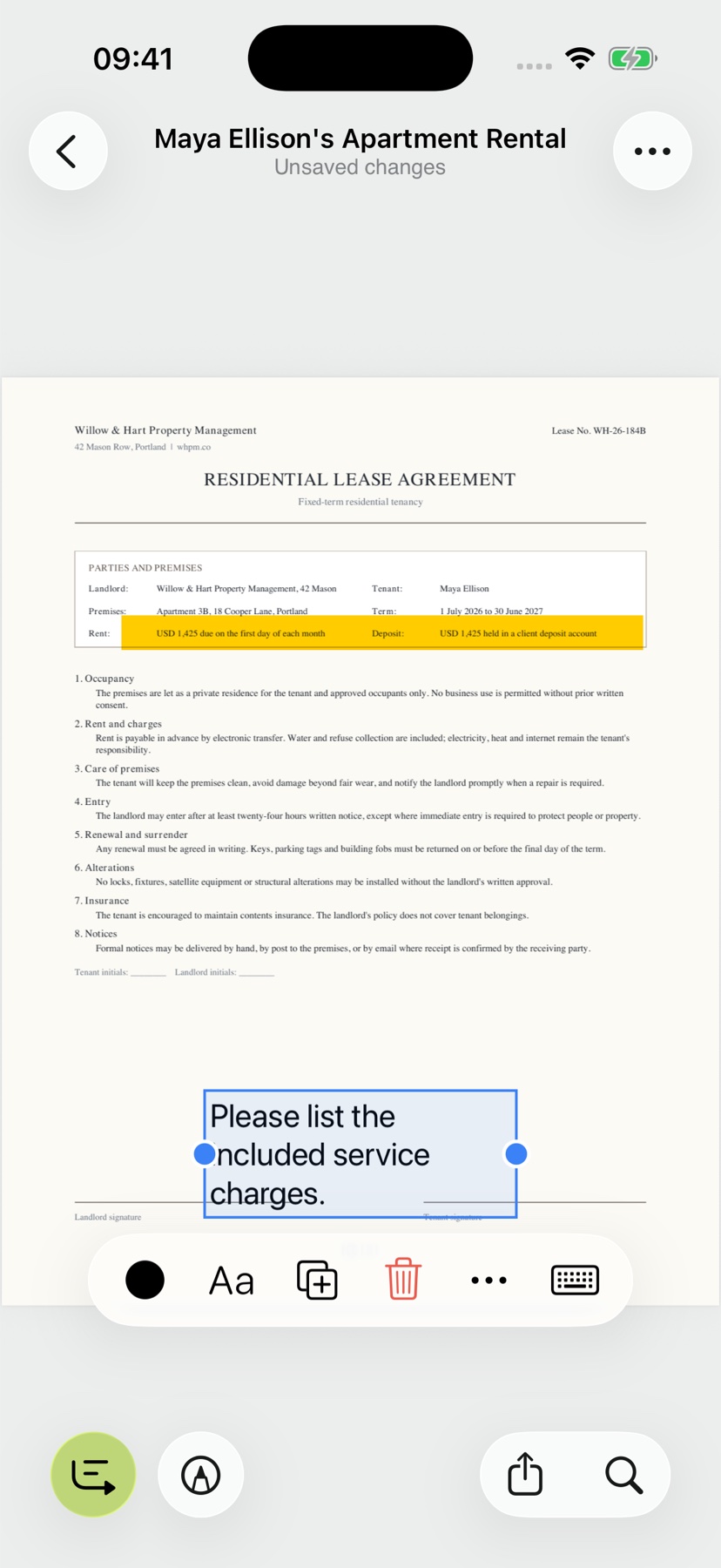
Add a comment for a question or observation and place it beside the relevant content. You can edit the text and its appearance, keeping the connection between your note and the passage clear. A separate note on the archive entry can capture the wider state of the conversation.
The captures show editing in progress. An “Unsaved changes” message means saving is still pending; check the saved file by reopening it.
Sign without reaching for the printer
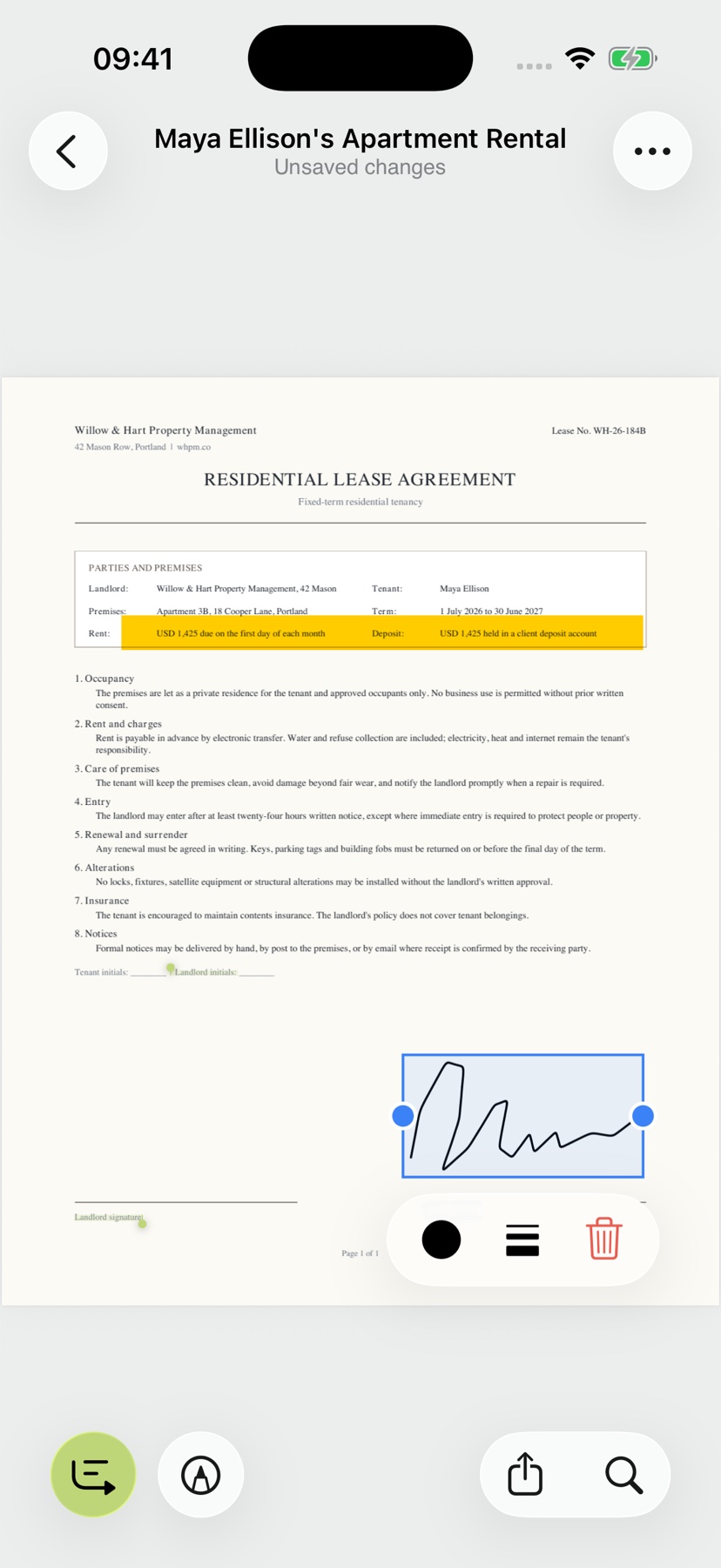
- In the Reader, open Tools and choose Add signature.
- Draw your signature and confirm with the checkmark.
- Drag it into place and resize it with two fingers.
- Use Back or Share to save. If a save error appears, the operation has not completed successfully.
- Reopen the PDF and check the saved signature and annotations.
This places a drawn signature in the PDF; it does not create a qualified electronic signature. Check which type of signature the recipient accepts. Signature types explained by the European Commission.
Keep working after you edit
Open the document's summary or explanation to understand a marked passage in context. Follow document links to related paperwork. Originals, annotations and explanations stay in one app as you move from reading to getting things done.
Need to find a particular phrase first? See how to search text in scans. To use dates, places and tasks from the content, follow the guide to document actions with Pro.