 ExplainThisDoc
How to spot a phishing email: a fake iCloud warning, taken apart
Phishing emails copy the look of real companies, but they tend to give themselves away in the same few places. This guide takes apart a fake iCloud warning that really arrived in our inbox. For each warning sign it shows what the email does and the rule you can reuse on the next suspicious message. It also shows how ExplainThisDoc analyzes such emails for warning signs with Pro.
The example: a fake iCloud warning
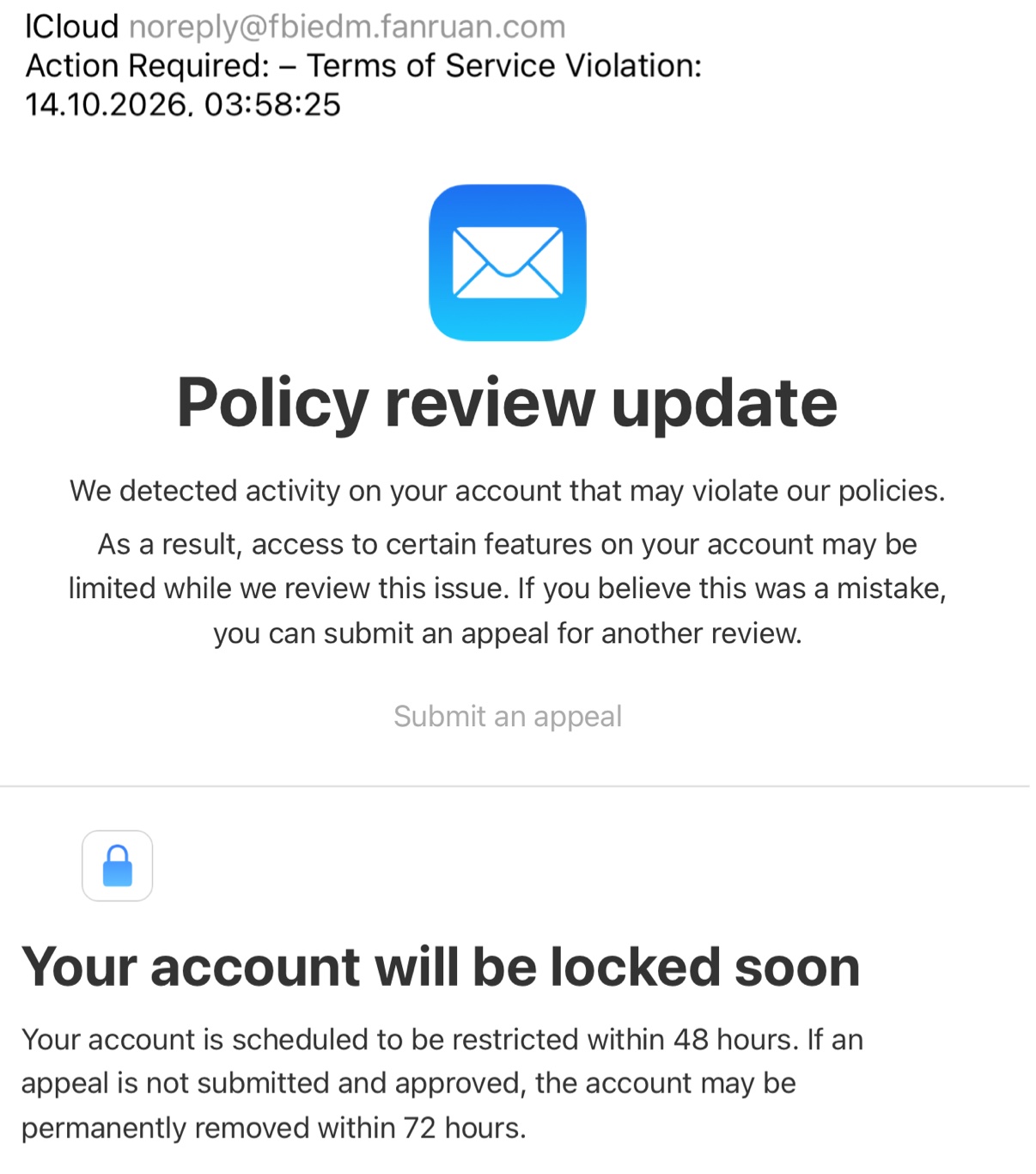
The email arrived on 14 October 2026 at 03:58. The sender appears as “ICloud” with the address [email protected], and the subject reads “Action Required: – Terms of Service Violation:”.
Under the heading “Policy review update”, it says activity on your account may violate “our policies”, that access to certain features may be limited while this is reviewed, and that you can submit an appeal if you believe this was a mistake. A single link follows: “Submit an appeal”. A second block, “Your account will be locked soon”, says the account will be restricted within 48 hours and may be permanently removed within 72 hours if an appeal is not submitted and approved.
We did not open the link, so this guide does not say where it leads.
Warning signs, and the rule behind each
- The sender domain does not belong to the brand. The name shown is “ICloud”, with a capital I where Apple writes “iCloud”, and the address behind it ends in fanruan.com, which is not an Apple domain. The rule: read the domain after the @, not the name in front of it. Anyone can type any name, and a misspelled brand name is one more hint.
- A subject that demands action without saying why. “Action Required: – Terms of Service Violation:” is generic, urgent and oddly punctuated. The rule: a subject built on pressure is a reason to slow down. Clumsy punctuation is a hint, not proof.
- A vague accusation. “Activity on your account that may violate our policies” names no activity, no account, no person. The rule: a warning that would fit any recipient tells you nothing about your account.
- A countdown in two steps. Restricted within 48 hours, permanently removed within 72 hours. The rule: a deadline in an unexpected email is there to stop you from checking. Take the time to check anyway.
- One way out, through the email. The only action offered is the “Submit an appeal” link. The rule: do not use buttons or links in an unexpected warning; reach the service through a route you choose yourself.
- A threat to what matters to you. According to the analysis, the email also says stored content may be removed if an appeal fails, in a part not shown in the excerpt above. The rule: threats to your photos, files or account are meant to make you act before you think.
- An unusual hour. It arrived at 03:58. The rule: the time alone proves nothing, because automated mail goes out at any hour. Count it only together with other signs.
No single sign proves fraud. Several together, as here, are a clear signal: stop and check through a route you choose yourself.
How ExplainThisDoc identifies such emails
We imported the email into ExplainThisDoc and had it analyzed for warning signs with Pro. The analysis checks the text for typical scam signs such as time pressure, threats, requests for login or payment details and a sender that does not match. Here it looked at the same places as the rules above.
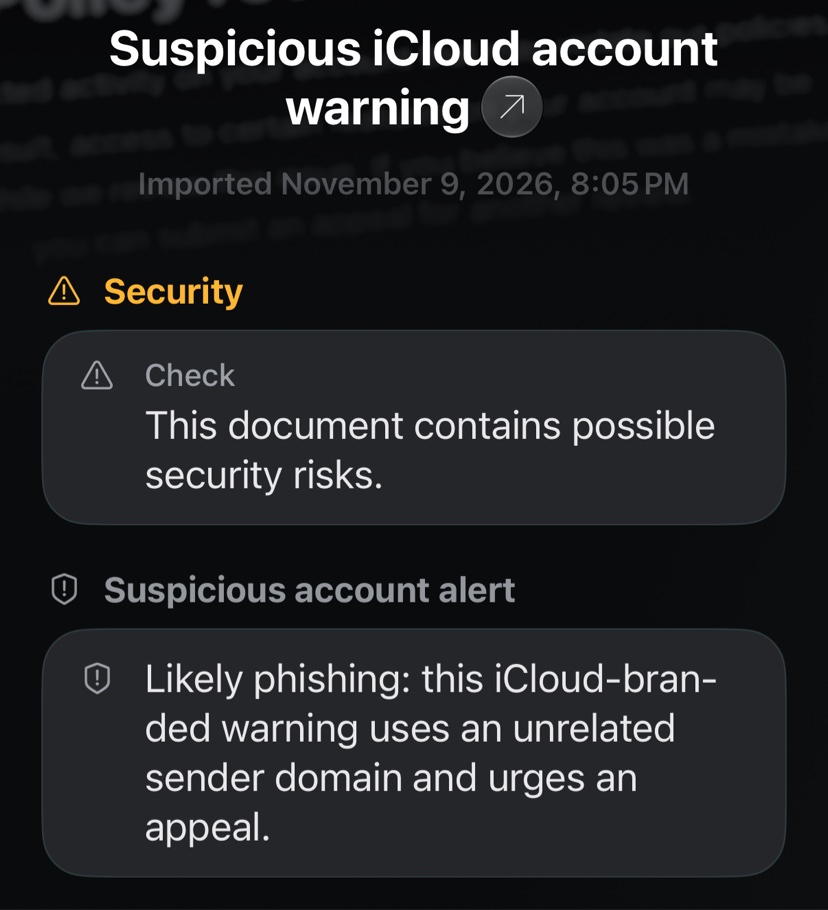
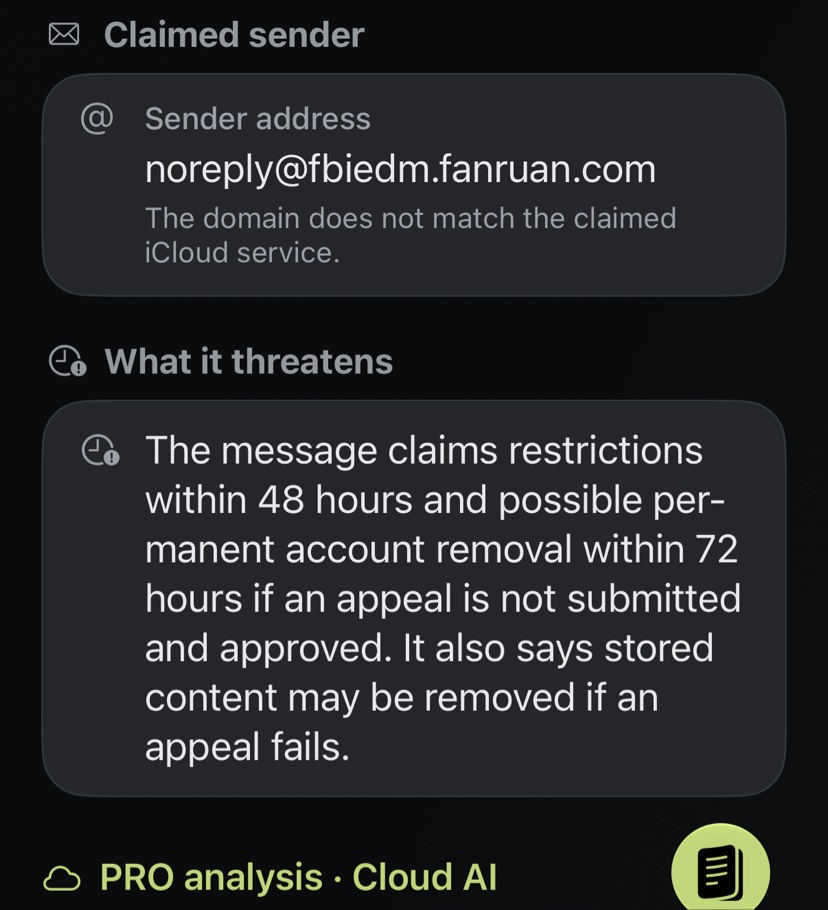
The result is titled “Suspicious iCloud account warning”. At the top, a security notice says: “This document contains possible security risks.” Under “Suspicious account alert”, the analysis calls the email likely phishing: an iCloud-branded warning that uses an unrelated sender domain and urges an appeal. Under “Claimed sender”, it shows the address [email protected] and notes that the domain does not match the claimed iCloud service. Under “What it threatens”, it lists the 48-hour restriction, the possible removal within 72 hours and the threat to stored content.
One Pro analysis uses 1 credit. The free Light analysis does not assess these signs.
What to do with an email like this
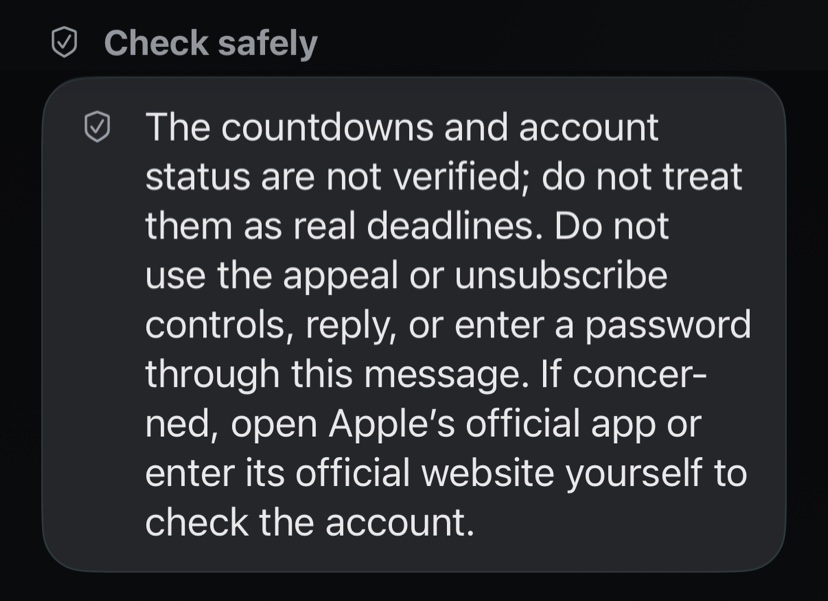
- Do not click buttons or links in the email, do not reply and do not enter a password through it.
- Do not treat the countdown as a real deadline.
- Check your account yourself: open Settings on your iPhone, or type the official website address into your browser. Look there for any notice about your account.
- Mark the email as junk or report it as phishing in your mail app, then delete it, or keep it as a record (see the next step).
- If you have already entered your password, change it right away and check your account’s security settings.
The analysis gives the same advice under “Check safely”.
Flagged emails stay marked in your archive
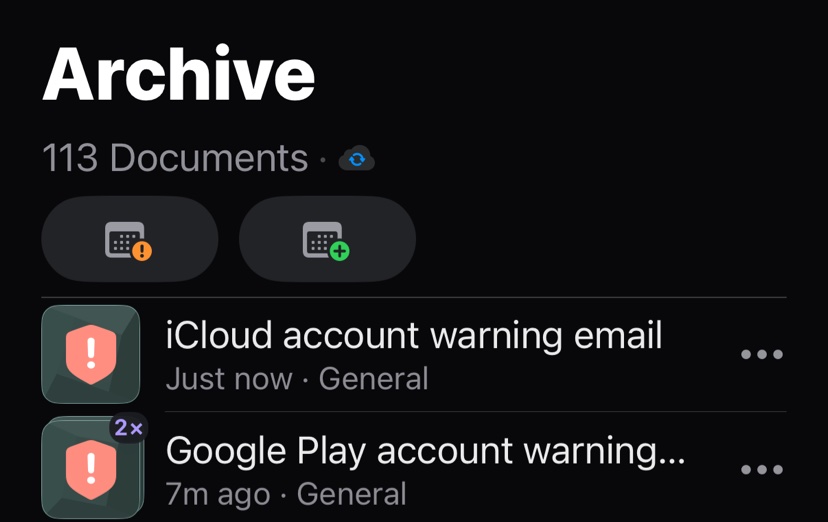
If you want a record, keep the email in your archive instead of only deleting it. Documents the analysis considers suspicious are marked with a red shield, so you recognize them again later. In our archive, the iCloud warning sits right above the fake Google Play developer email from our other example. Add a note with what you checked and when.
Scanning and the archive are free; the analysis for warning signs comes with Pro. The analysis reads the text you import and does not open links. A warning is not a proof of fraud, and the absence of a warning does not prove an email is genuine.
Have the next suspicious email analyzed for warning signs
Snap or import
Scan the letter or import a photo or PDF. Links and QR codes in the letter are not opened.
Analyze for warning signs
Pro checks the text for typical scam signs such as time pressure, threats or requests to enter login or payment details, and shows a security notice at the top if it suspects fraud. 1 credit per analysis.
Keep it in case something follows
Original, analysis and your notes stay together in your archive; a red shield marks suspicious documents.
- No sign-up
- No subscription
- Start right away

 Scan with your iPhone camera