 ExplainThisDoc
Fake Google Play developer termination email: how to spot it
An email signed “Google Play Developer Support” says your developer account will be terminated. To avoid that, you are told to remove users in Play Console and reply with a screenshot of the remaining user list. This guide uses a real email of this kind that reached us. It shows the warning signs, what the ExplainThisDoc Pro analysis found when it analyzed the email for warning signs, and how to check your account safely.
The email and what it wants
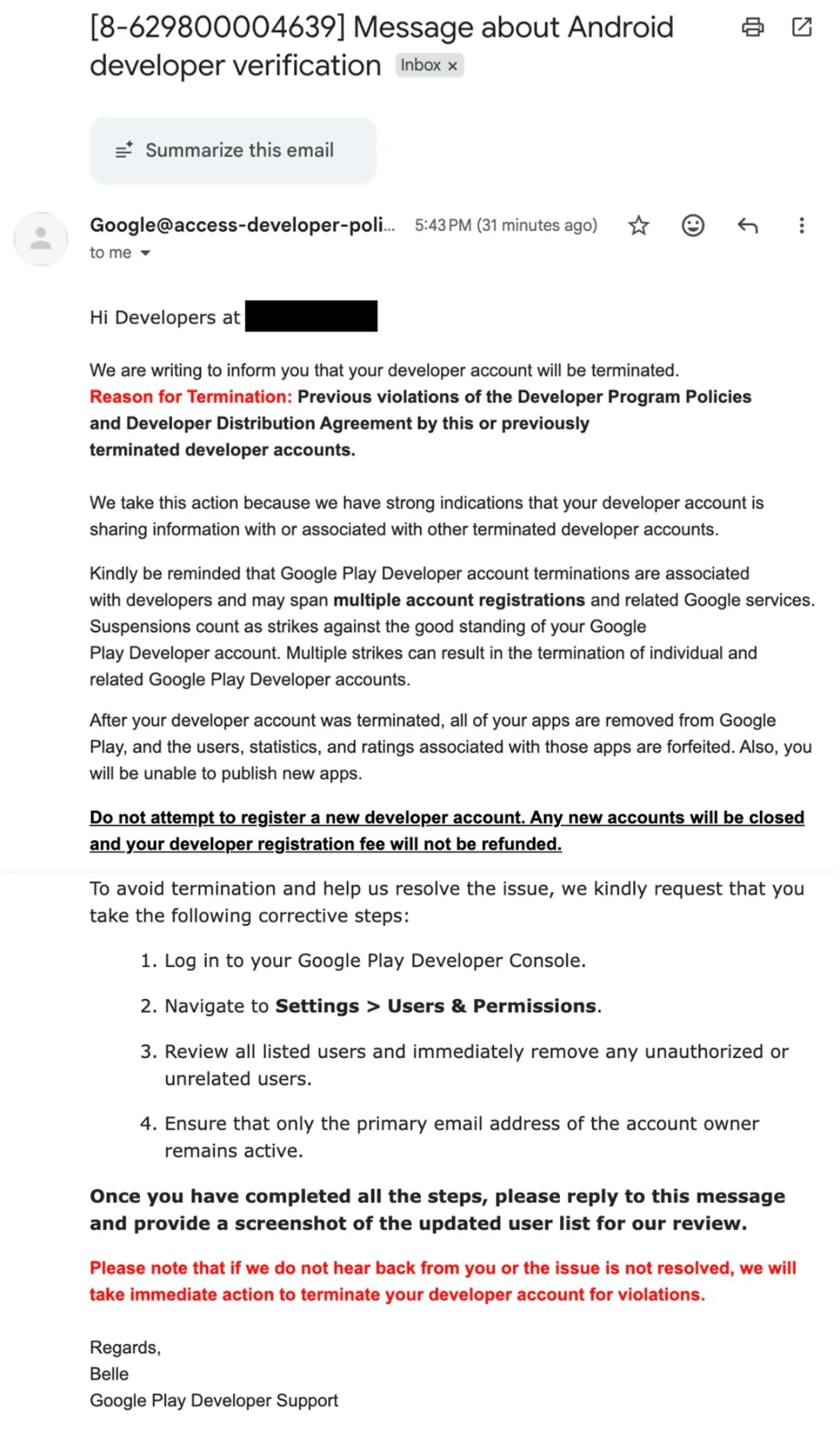
The email arrived in Gmail with the subject “Message about Android developer verification”, preceded by a reference number in square brackets. The sender appears as “Google@access-developer-poli…”, cut off by the inbox. It is addressed to “Developers at” the account name, which is blacked out here.
It says the developer account will be terminated for previous violations of the Developer Program Policies and the Developer Distribution Agreement, and because the account is associated with other terminated developer accounts. It warns against registering a new account. To “avoid termination”, it asks the recipient to:
- log in to the Google Play Developer Console,
- open Settings > Users & Permissions,
- remove any “unauthorized or unrelated users” and keep only the account owner’s primary email address,
- reply to the message with a screenshot of the updated user list.
Without a reply, it threatens “immediate action to terminate your developer account”. It is signed “Belle, Google Play Developer Support”.
Warning signs in this email
- The sender address. “Google” stands before the @, where anyone can write any name. What counts is the domain after the @. Here it starts with “access-developer-poli…” instead of google.com, and the rest is cut off.
- A contradiction. The email first says the account “will be terminated”, then continues with “After your developer account was terminated…”. It cannot be both.
- A threat. If you do not reply, it announces “immediate action” to terminate the account.
- An unusual request. You are to remove users and send a screenshot of who has access to your developer account. That list tells a stranger which email addresses manage your apps, and removing people on someone else’s instruction can lock out those who legitimately work on them.
- The answer goes by reply. The steps happen in Play Console, but the proof is meant to go back by email to whoever sent this message.
The word “Google”, a reference number and a support signature prove nothing: all of them are easy to copy. Several of these signs together are a clear reason to stop and check.
The general rules behind these signs, with a second example, are in How to spot a phishing email.
What the Pro analysis showed
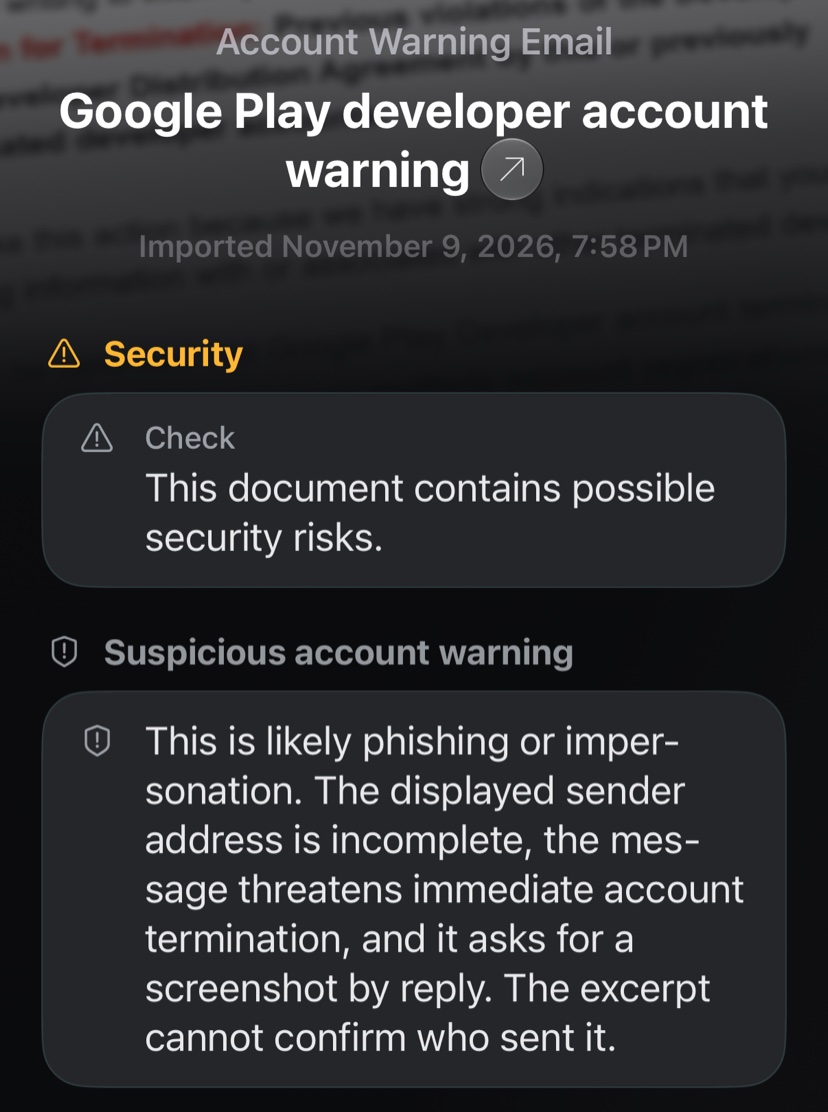
We imported a screenshot of the email into ExplainThisDoc and had it analyzed for warning signs with Pro. The analysis checks the text for typical scam signs such as time pressure, threats, requests for login or payment details and a sender that does not match. It titled the result “Google Play developer account warning”, with the document type “Account Warning Email”.
At the top, a security notice says: “This document contains possible security risks.” Under “Suspicious account warning”, the analysis calls the email likely phishing or impersonation: the displayed sender address is incomplete, the message threatens immediate account termination, and it asks for a screenshot by reply. It adds that the excerpt cannot confirm who sent it.
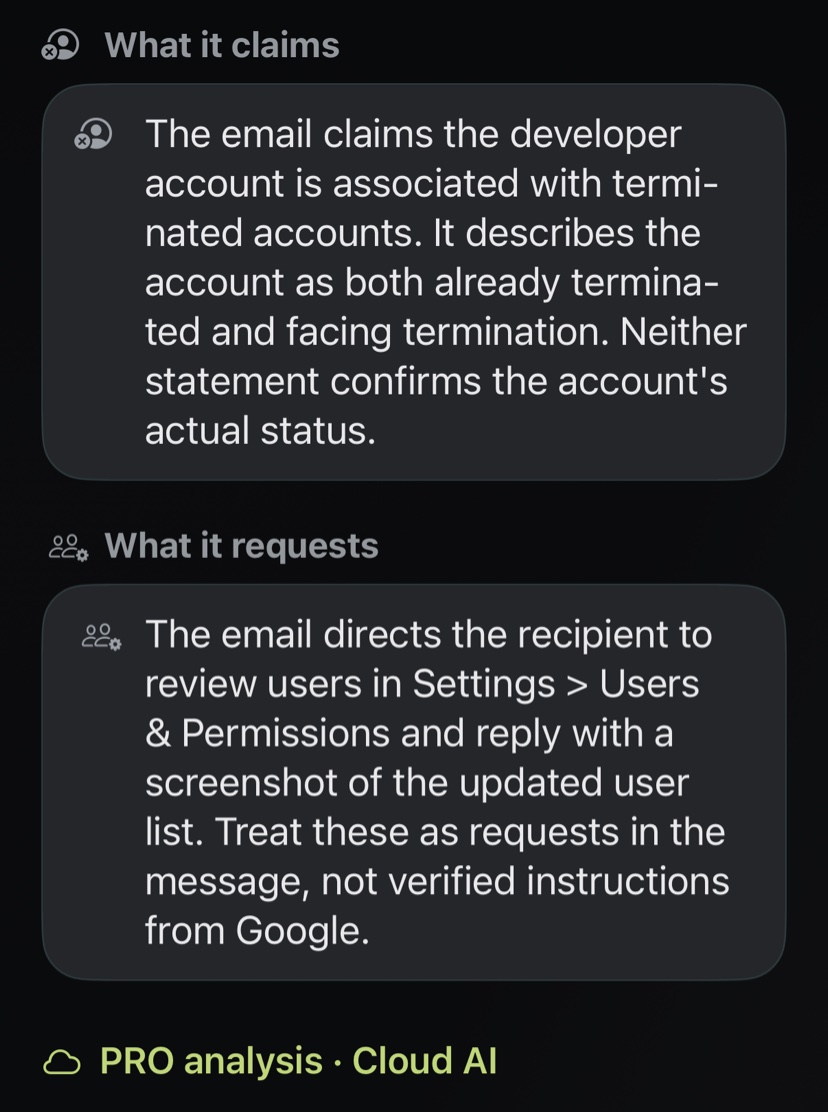
Under “What it claims”, it notes that the email describes the account as both already terminated and facing termination. Under “What it requests”, it lists the steps in Settings > Users & Permissions and the screenshot by reply, and treats them as requests in the message, not as verified instructions from Google.
What to do instead
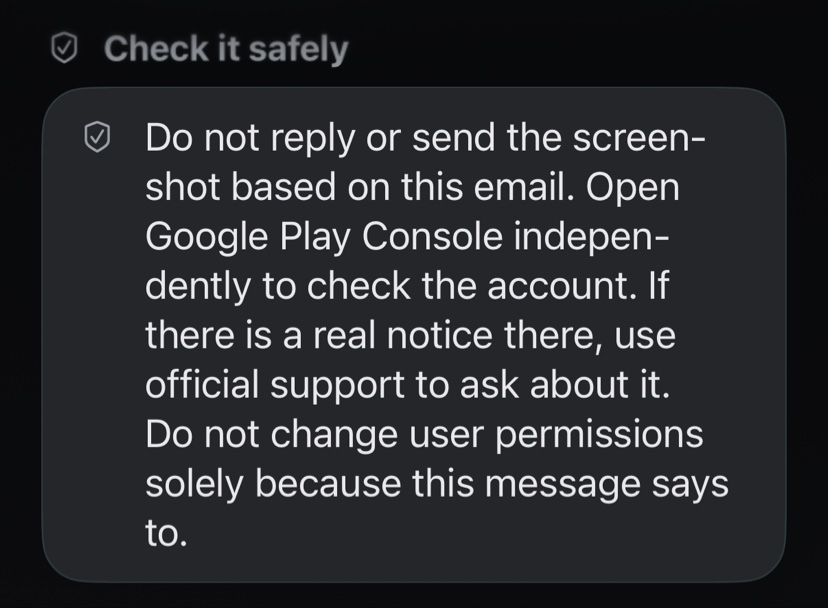
- Do not reply to the email, and do not send a screenshot of your user list.
- Do not remove users or change permissions because an email tells you to.
- Open Play Console yourself, from your bookmark or by typing the address, not through a link or button in the message. Check your account and any notices or messages shown there.
- If there is a real notice, ask about it through Google’s official support, using contact options you find yourself, not the email.
- If you have already replied, clicked a link or entered your password, change the password, check your account’s security settings and review who has access.
The analysis gives the same advice under “Check it safely”.
Keep the email in your archive
Keeping a suspicious email can help if more messages follow or you want to report it. In ExplainThisDoc the screenshot stays in your archive together with its analysis, and a red shield marks documents the analysis considers suspicious. Add a note with what you checked, for example when you opened Play Console and what you found there.
Scanning and the archive are free. The analysis for warning signs comes with Pro: 1 credit per analysis. You get three trial credits once on your first installation. The free Light analysis does not assess these signs. The analysis reads the text you import and does not open links; as it says itself, an excerpt cannot confirm who sent a message. A warning is not a proof of fraud, and the absence of a warning does not prove a message is genuine.
Have suspicious emails analyzed for warning signs before you act
Snap or import
Scan the letter or import a photo or PDF. Links and QR codes in the letter are not opened.
Analyze for warning signs
Pro checks the text for typical scam signs such as time pressure, threats or requests to enter login or payment details, and shows a security notice at the top if it suspects fraud. 1 credit per analysis.
Keep it in case something follows
Original, analysis and your notes stay together in your archive; a red shield marks suspicious documents.
- No sign-up
- No subscription
- Start right away

 Scan with your iPhone camera